
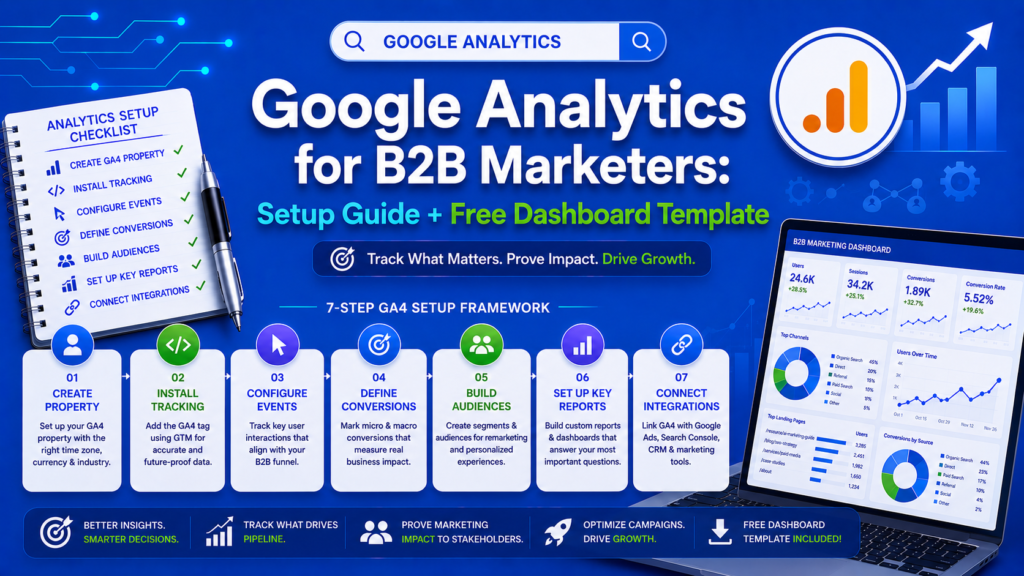
To set up Google Analytics 4 for B2B: (1) Create a GA4 property and install the tracking tag via Google Tag Manager, (2) configure custom events for form submissions, demo requests, and content downloads, (3) set up conversion tracking for each pipeline stage, (4) connect to Google Ads for offline conversion imports, and (5) build custom exploration reports for B2B-specific metrics like account-level engagement and content-influenced pipeline.
Google Analytics 4 was built for e-commerce. Every default report, every out-of-the-box metric, every template assumes you are selling products online.
B2B marketers need to rebuild GA4 from scratch to make it useful. The default dashboard tells you nothing about pipeline, lead quality, or content’s impact on revenue.
This guide covers the exact GA4 setup we configure for every B2B client. By the end, you will have a GA4 implementation that actually tells you what matters: which marketing activities generate pipeline and revenue.
Why GA4 Matters More Than Ever for B2B
GA4 is not just an analytics upgrade—it is the foundation for AI-powered marketing optimization:
- Google Ads Smart Bidding relies on GA4 conversion data to optimize campaigns
- AI Overviews attribution requires GA4 to track how AI-driven search impacts your traffic
- Cross-device tracking connects the mobile researcher to the desktop converter
- Predictive audiences use machine learning to identify users likely to convert
Without proper GA4 setup, your Google Ads campaigns are optimizing blind and your attribution is incomplete.
Phase 1: Foundation Setup
Step 1: Create Your GA4 Property
If you are still running Universal Analytics alongside GA4, it is time to go all-in on GA4. Universal Analytics stopped processing data in July 2024.
Create a new GA4 property (or verify your existing one):
- Go to Google Analytics → Admin → Create Property
- Set the time zone and currency to match your business
- Select “Business objectives” that align with B2B: Generate leads, Raise brand awareness
Step 2: Install Tracking via Google Tag Manager
Always use Google Tag Manager (GTM) for GA4 implementation. Direct installation limits your ability to track custom events.
GTM setup:
-
Create a GA4 Configuration tag in GTM
-
Set the Measurement ID (G-XXXXXXXXXX)
-
Trigger on “All Pages”
-
Add enhanced measurement settings (scroll tracking, outbound clicks, file downloads)
-
Test in GTM Preview mode before publishing
Step 3: Configure Data Streams
Set up a single web data stream:
Enable enhanced measurement (pageviews, scrolls, outbound clicks, site search, file downloads) Configure cross-domain tracking if you use multiple domains (e.g., blog on a subdomain) Set internal traffic filters to exclude your office IP addresses
Phase 2: Custom Event Tracking for B2B
Default GA4 events track pageviews and clicks. B2B needs custom events for lead generation activities.
Essential B2B Events to Track
|
Event Name |
Trigger |
Parameters |
|---|---|---|
|
form_submit |
Any form submission |
form_name, form_location, page_url |
|
demo_request |
Demo form completion |
source, medium, campaign |
|
content_download |
Gated content download |
content_title, content_type |
|
pricing_page_view |
Pricing page visit |
traffic_source, user_segment |
|
chatbot_engaged |
Chatbot conversation started |
page_url, chatbot_trigger |
|
video_milestone |
Video watched 25%, 50%, 75%, 100% |
video_title, milestone_percent |
|
outbound_click |
Click to partner/integration page |
click_url, click_text |
Implementation in Google Tag Manager
For each custom event:
-
Create a trigger (form submission, button click, page view)
-
Create a GA4 Event tag linked to your configuration tag
-
Add event parameters for context
-
Test thoroughly in Preview mode
-
Publish and verify data flows in GA4 DebugView
Setting Up Conversions
Mark your most important events as conversions in GA4:
- form_submit → Primary conversion
- demo_request → Primary conversion (higher value)
- content_download → Secondary conversion
- chatbot_engaged → Secondary conversion
Assign monetary values to each conversion to enable value-based reporting:
- demo_request: $500 (based on average conversion to revenue)
- form_submit: $100
- content_download: $25
Phase 3: B2B-Specific Reporting The B2B Marketing Dashboard
Build this dashboard using GA4’s Explore feature or Looker Studio:
Report 1: Traffic Quality by Source Not all traffic is equal. This report shows sessions, engagement rate, and conversion rate by traffic source. For B2B, high-quality traffic from organic search and LinkedIn typically outperforms high-volume traffic from social or referral.
Report 2: Content Performance Which content pieces generate the most conversions? Track by page path, showing sessions, average engagement time, and conversion events. Sort by conversions to identify your top-performing content.
Report 3: Conversion Funnel Build a custom funnel:
Page View → Key Page Visit (pricing, case studies) → Form View → Form Submit → Thank You Page. This shows exactly where prospects drop off.
Report 4: Landing Page Performance Which entry pages lead to conversions? Not all organic landing pages are equal—some attract tire kickers, others attract buyers. Identify your revenue-generating content.
Report 5: User Journey Paths GA4’s Path Exploration shows the most common paths users take through your site before converting. This reveals which content sequences lead to conversions.
Custom Dimensions for B2B
Set up custom dimensions to slice data by B2B-relevant attributes:
- Company size (pulled from form data or enrichment tools)
- Industry (from form data)
- Content category (blog, case study, guide, tool)
- Funnel stage (awareness, consideration, decision)
- Campaign type (organic, paid, email, social)
Phase 4: Google Ads Integration
Connect GA4 to Google Ads for closed-loop reporting:
-
Link GA4 and Google Ads accounts in GA4 Admin
-
Import GA4 conversions into Google Ads
-
Enable auto-tagging for campaign tracking
-
Set up audiences in GA4 and share with Google Ads for remarketing
Critical for B2B: Also set up offline conversion imports from your CRM to Google Ads. GA4 tracks the website journey; your CRM tracks what happens after the form fill. Connecting both gives Google’s AI the complete picture.
Phase 5: Advanced B2B Analytics Predictive Audiences
GA4’s machine learning creates predictive audiences automatically:
Likely 7-day purchasers — users predicted to convert in the next 7 days Likely churners — users predicted to not return
For B2B, use these audiences to:
- Target retargeting ads at users most likely to convert
- Send triggered emails when high-probability leads visit key pages
- Alert sales team when target accounts show high engagement
Attribution Modeling
GA4 offers data-driven attribution by default, which uses machine learning to assign conversion credit across touchpoints. This is more accurate than last-click or first-click models for B2B.
Review the Attribution → Model Comparison report monthly to understand:
Which channels initiate the buyer journey Which channels assist conversion Which channels close deals
BigQuery Export
For advanced analysis, export GA4 data to BigQuery:
- Query raw event data for custom analysis
- Join with CRM data for complete customer journey analysis
- Build custom attribution models
- Create executive dashboards in Looker Studio
Common GA4 Mistakes for B2B
Mistake 1: Using default channel groupings. GA4’s default channels do not distinguish B2B-relevant sources. Create custom channel groups that separate LinkedIn from other social, separate branded from non-branded organic, and identify email nurture from email blast.
Mistake 2: Not filtering internal traffic. Your team visits your website hundreds of times monthly. If you do not filter internal IPs, your data is inflated and misleading.
Mistake 3: Tracking too many conversions. If everything is a conversion, nothing is. Limit primary conversions to actions that directly correlate with pipeline: demo requests, contact form submissions, and consultation bookings.
Mistake 4: Ignoring engagement metrics. GA4’s engagement rate is more meaningful than bounce rate for B2B. A 10-minute session where a prospect reads your entire case study matters more than whether they visited a second page.
The Bottom Line
GA4 is powerful for B2B—once you configure it properly. The default setup tells you nothing useful. The customized setup described in this guide gives you the intelligence to make data-driven marketing decisions that impact pipeline.
At Expert Written Marketing, we configure GA4 as part of every B2B marketing engagement. Because you cannot optimize what you cannot measure.
Need help setting up GA4 for B2B? Get a free analytics audit from Expert Written Marketing.